
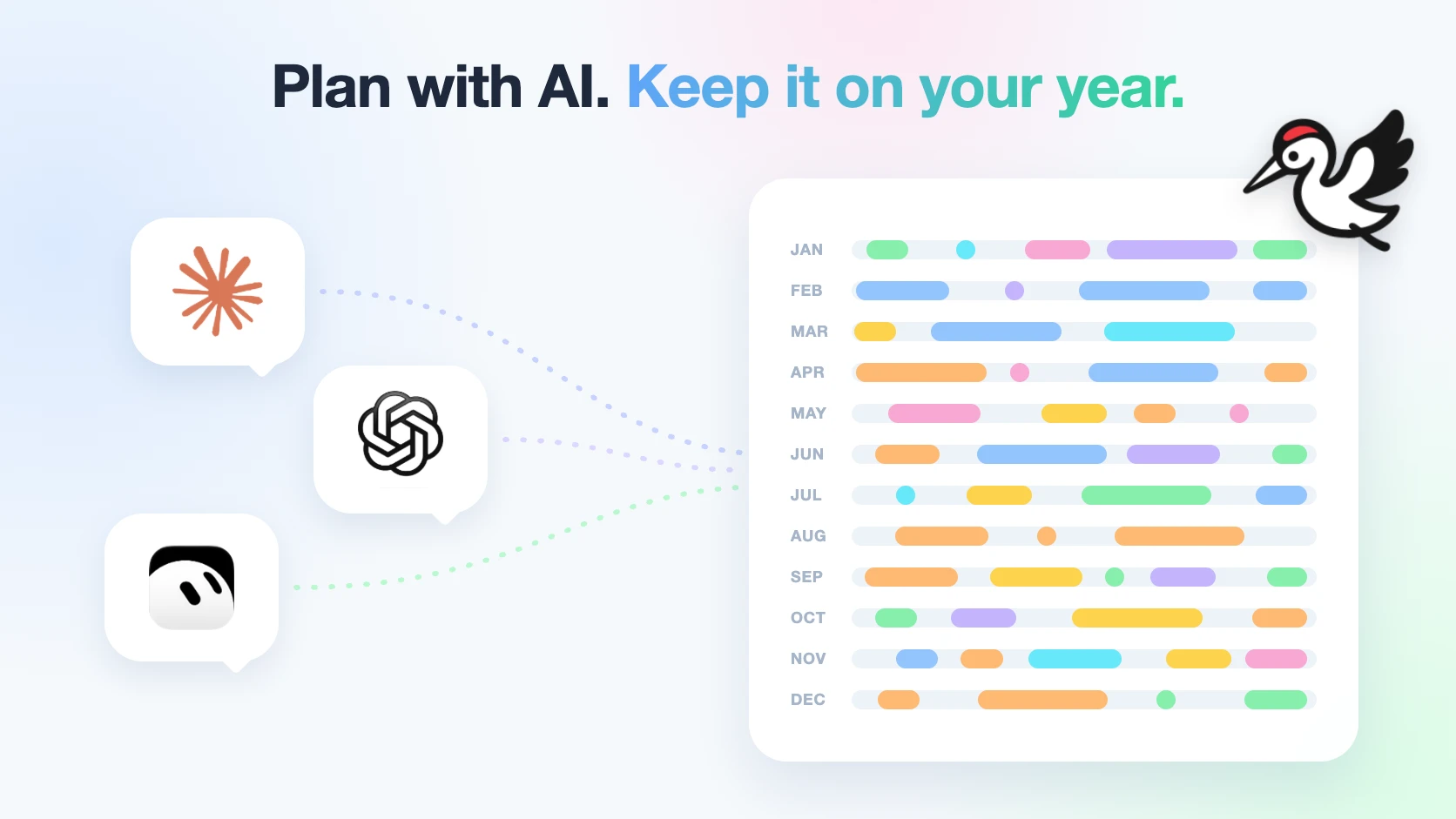
Many plans now start in a chat with an AI app. You talk through a training schedule for a race in April, a trip, or the steps of a project, and end up with a good plan. Then it stays in the chat, and you type it into your calendar one event at a time, or never do.
Now you can connect AnuCal to an AI app such as Claude, ChatGPT or Grok Bot. When the plan looks right, say “Put it in AnuCal”, and its phases, repeats and key dates land on your year. You see the whole plan in place, next to everything else, and adjust it from there.
What you can ask
- Turn a plan into events: after working out a plan, say “Put it in AnuCal.” Phases become events, and a weekly session becomes one repeating event
- Add a list at once: paste the school’s dates and say “Put these on my AnuCal calendar”
- Look something up: “When is my card bill due in AnuCal?” or “What’s on next month?”
- Repeat: “Add a gym session every Monday for 8 weeks.” If you don’t say how many times or until when, it asks rather than guessing
- Move: “Move the dentist to next Friday.” The event keeps its length, and a repeating one moves as a whole series
- Delete: “Delete the test event I added today.” It shows you the event and asks first
It can also add Sometime items, emoji stamps and bubble stamps, and create a category when you agree to one. If you have more than one calendar or category, it asks which one to use before adding anything.
Connect your AI app
The address is the same for every app: https://mcp.anucal.com. You sign in to AnuCal, check what the app will be able to do, and choose Allow.
Claude
- Choose Plugins in the sidebar, the same on claude.ai and in the desktop app
- Choose Add, then Add custom connector
- Enter AnuCal as the name and the address as the MCP server URL, then choose Continue
- In a new chat, make sure AnuCal is turned on in the tools menu
ChatGPT
- On chatgpt.com or in the ChatGPT desktop app, open Settings, then Plugins, and choose Browse directory
- Choose Add, then Add custom MCP server
- Enter AnuCal as the name and the address as the server URL, keep OAuth for authentication, and choose Create as a plugin
Grok Bot (x.ai/bot, a different product from @grok on X and from grok.com)
- In its settings, choose Add custom connector
- Enter AnuCal as the name, choose Remote HTTPS as the type, and enter the address as the server URL
The permission screen shows the name Cursor. That’s the name Grok Bot gives itself when it connects, so it’s expected.
For more detail, including what to do if something goes wrong, see Use AnuCal from Claude, ChatGPT, and other AI apps in the AnuCal Help Center.
At first, add in AnuCal to your question. Some AI apps only reach for a connected app when the question clearly calls for it, and naming AnuCal makes sure it looks there.
What stays the same
The AI app works with your own account, so your plan limits and calendar edit permissions apply just as in the app. It can’t see or change your private notes, or edit an event’s title or description. It deletes events one by one and should check with you first, so it’s best for tidying a few events rather than clearing a whole year.
There is no trash. A deleted event comes back only as a new event the AI app adds again, so events with your notes or a bubble stamp filled in can only be deleted in AnuCal, where you can undo.
To disconnect an AI app, open Connected apps in AnuCal and revoke its access.
Plans
It works on every plan. On Free, events the AI app adds count toward your 30 events, and a repeating event counts once for each repeat.