
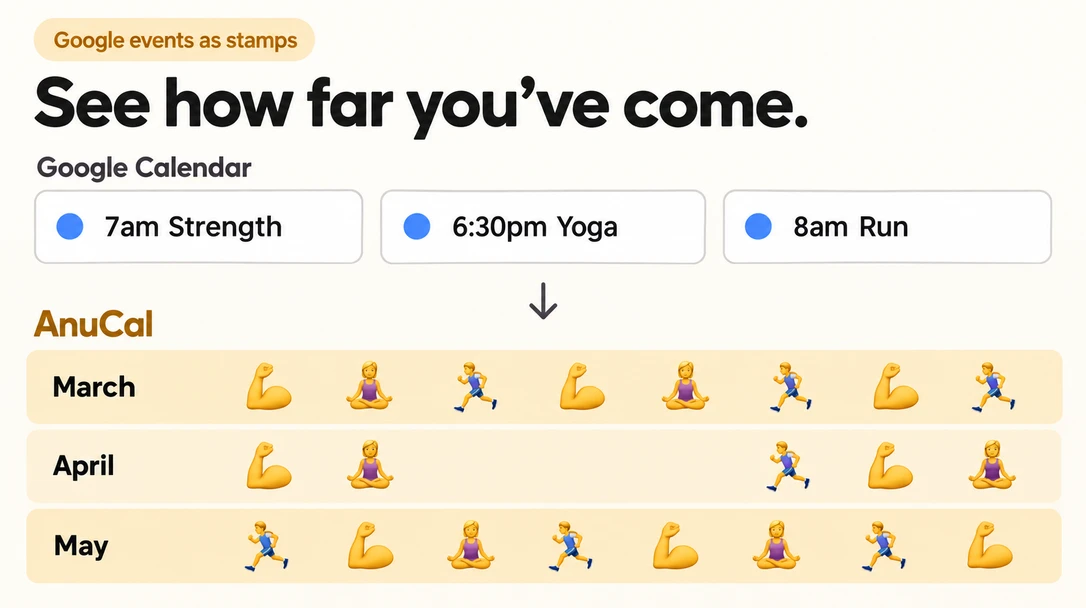
Until now, AnuCal had two ways to put something on a day: an event or a stamp. They looked alike from the outside but worked differently inside. A stamp couldn’t have a description or repeat, an event couldn’t be an emoji, and every time you added something you had to decide which of the two it was.
Now there is one. A stamp is a single-day event shown as an emoji. Everything an event can do, a stamp can do too, and adding one starts the same way as adding any event.
Add a stamp
- Click a day
- Keep Single Day selected and turn on Stamp
- Pick an emoji
The event appears as that emoji in the stamp row of the day. A title is optional: an untitled stamp is listed as its emoji and category, such as ”🎂 Birthdays”. Drag a stamp to another day to move it, as before.
What a stamp gains as an event
- A description, for the detail that doesn’t fit in a title
- Repeat: a weekly or monthly event shown as a stamp puts the emoji on every occurrence. The occurrences can’t be moved one by one: move the original event and the whole series follows
- An Emoji column in the event CSV export
Stamps show on published calendar pages and in the vertical layout, and the people you share the calendar with see them, the same as other events.
Your existing stamps
Every stamp you had is now an event shown as a stamp, on the same day, in the same category. A stamp’s note became the event’s title; a stamp without a note stays untitled. Nothing to do on your side.
Longer than one day
Only a single-day event shows as a stamp. Stretch one over several days and it becomes a bar, keeping its emoji: bring it back to one day and the stamp returns.
Choosing the emoji
The emojis offered first come from the calendar’s palette, so each calendar can keep its own set. You can also pick any emoji for a single event, on every plan. On Premium, you can edit the palette itself.
Google events as stamps
If your gym sessions, lessons or medication live in Google Calendar, they can show as stamps too:
- Open the calendar menu next to the calendar name and choose Stamps
- Under From Google Calendar, add a keyword and an emoji
Every single-day Google event with that word in its title then appears as the emoji instead of a bar. Gym sessions become a row of 💪 down the year. These stamps still belong to Google Calendar: click one to open the event, and change it in Google. Rules apply to all your calendars, and you can switch one off without deleting it. On Premium, events with a start time can be stamped too.
If Google’s stamps and bars stand out more than your own, open Google Calendar Sync (linked from the Stamps window) and lower Event Opacity. It fades every Google event, bars and stamps alike, from 100% down to 30%, so your own plans stay in front.
Plans
Stamps work on every plan. On Free, a stamp counts toward the 30 events like any other event, and your existing stamps count now too. Editing the palette and stamping Google events with a start time are Premium.