
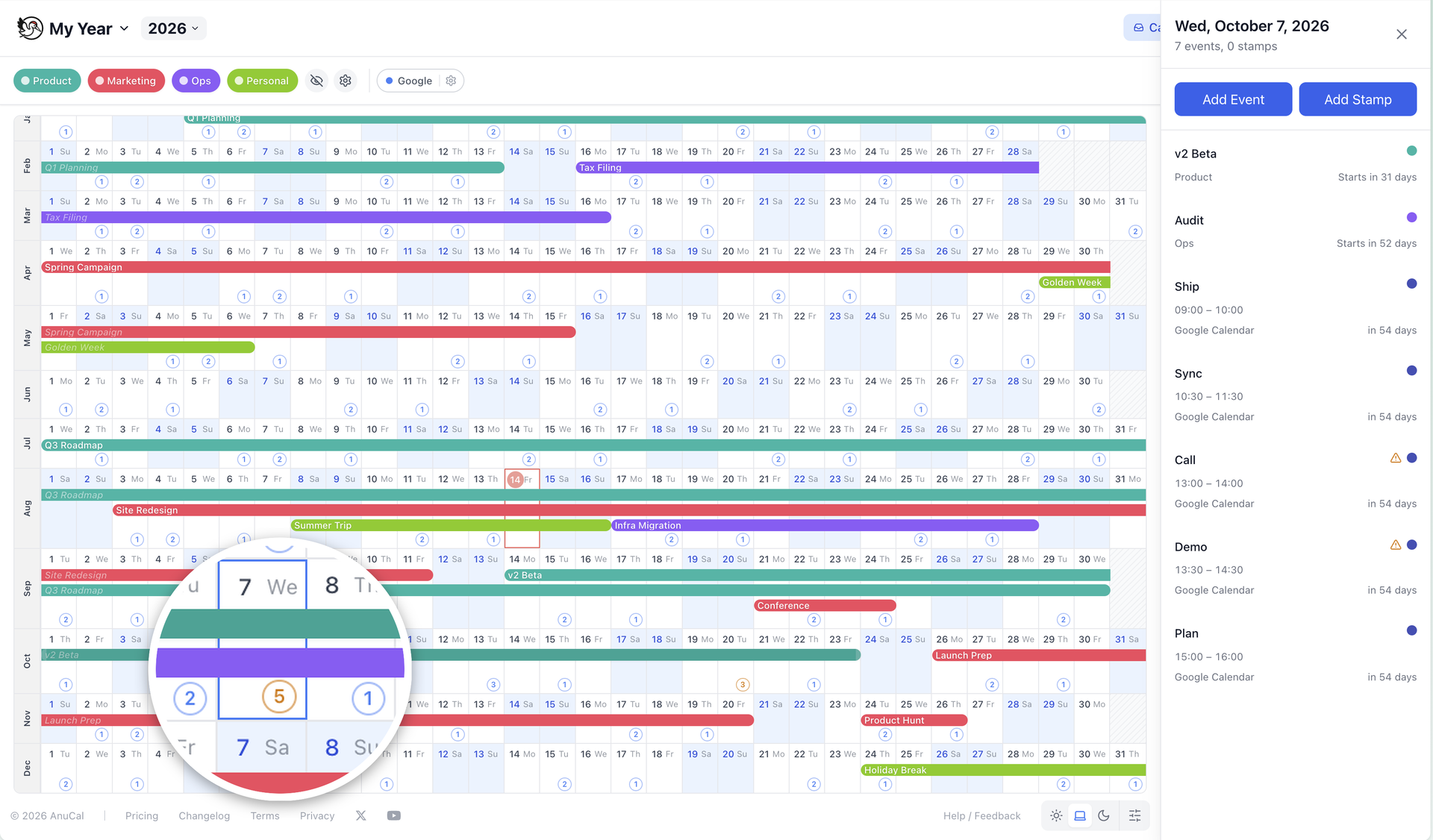
Until now AnuCal only took all-day events from Google Calendar. Everything with a start time was dropped on the way in — which, for most people, is most of their calendar.
Why it exists
- A year view that ignores your meetings is only half your year
- You do not want a timetable inside AnuCal — you want to know which days are loaded
- Two requests arrived from opposite directions: one for a circled number on each day, the other for a way to spot maintenance windows colliding across a whole year
What it does
- Count — a small circled number on each day, so a busy week is visible at a glance
- Chips — the events themselves on the day, capped at three with a “+N” for the rest
- Off — the default, and exactly what AnuCal showed before
- Marks the events that run at the same time as another, if you ask it to
- Click any date to read that day in order, with times
Where the detail lives
A day cell is about as wide as your thumbnail, so times are not printed on it. They are one click away instead — the day list shows every event with its range, and clashes are called out there too. Hovering a chip also shows its time.
Good to know
- Times are read in the event’s own timezone, so a session at 18:00 in Sydney stays on that day wherever you are
- An event that runs past midnight sits on the day it starts, and clashes are looked for among the events that start on that same day — so a pair that meets across midnight is not flagged yet
- Everything stays read-only — AnuCal reads your Google Calendar and never writes to it
- Nothing changes until you turn it on: your calendar looks exactly as it did
Setting it up
- Open Google Calendar sync, then Timed Events
- Pick Count or Chips, and switch on Flag overlapping events if clashes matter to you
- The setting is yours and follows you across devices
Who can use it
- Timed events are part of Premium
- All-day sync is unchanged and stays on every plan